Table of Contents
Introduction
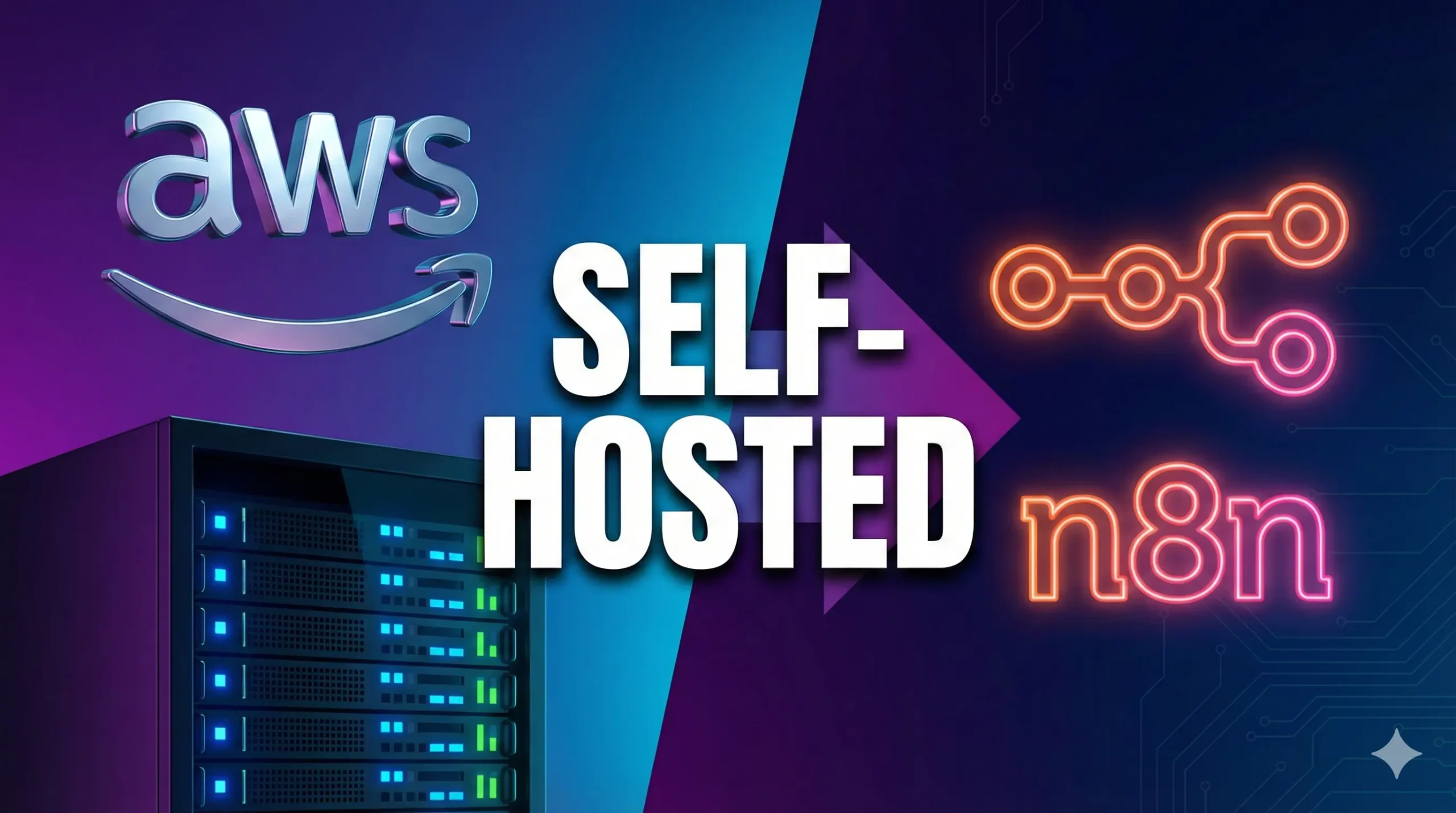
If you are serious about automation, you know that n8n is the best open-source alternative to Zapier and Make. However, as your workflows expand, so do the costs associated with cloud-hosted versions.
The solution? Self-hosting.
By hosting n8n on your own AWS EC2 instance, you can run unlimited workflows, keep your data private, and—if you use the AWS Free Tier—pay effectively $0/month for the first year.
In this guide, I will walk you through the entire process:
- Launching a free AWS server.
- Installing Docker and Docker Compose.
- Setting up a Custom Domain & SSL.
- Fixing the common “Connection Lost” error.
Let’s get your automation powerhouse running.
Prerequisites
Before we start, make sure you have:
- An active AWS Account (Free Tier eligible is best).
- A domain name (e.g.,
yourdomain.com) bought from Namecheap, GoDaddy, or Route53. - Basic familiarity with the terminal (don’t worry, I’ll provide the codes).
Step 1: Launch Your AWS EC2 Instance
First, we need a computer in the cloud to run our software.
- Log in to the AWS Console and search for EC2.
- Click Launch Instance.
- Name: Give it a name like
n8n-server. - OS Image: Select Amazon Linux 2023
- Instance Type: Select t2.micro or t3.micro. The AWS Free Tier usually covers these.
- Key Pair: Click “Create new key pair. Name it
n8n-key, download the.pemfile, and save it safely. - Network Settings: Check the boxes for:
- Allow SSH traffic from anywhere.
- Allow HTTPS traffic from the internet.
- Allow HTTP traffic from the internet.
Click Launch Instance.
Step 2: Point Your Domain to AWS
While your server is starting up, let’s configure your domain.
- In the AWS EC2 dashboard, click on your running instance.
- Copy the Public IPv4 address (e.g.,
54.123.45.67). - Go to your domain registrar (Namecheap, Cloudflare, etc.).
- Create a new A Record:
- Host:
n8n(This makes your URLn8n.yourdomain.com) - Value: Paste your EC2 IP address.
- TTL: Automatic or 5 min.
- Host:
Step 3: Connect and Install Docker
Open your terminal (Mac/Linux) or PowerShell (Windows). Navigate to the folder where you saved your Key Pair (.pem file).
Command to connect:
ssh -i n8n-key.pem ec2-user@your-ec2-ip-address(If you get a “permission denied” error, run chmod 400 n8n-key.pem first).
Once logged in, paste these commands one by one to update your server and install Docker:
sudo dnf update -y
sudo dnf install -y docker

# 3. Enable Docker to run automatically
sudo systemctl enable --now docker
Step 4: Create the Docker Compose Setup
We will use Docker Compose to manage n8n. This ensures your data is saved even if the server restarts.
Create a folder for your project:
sudo mkdir -p /usr/libexec/docker/cli-plugins/
sudo curl -SL https://github.com/docker/compose/releases/latest/download/docker-compose-linux-$(uname -m) -o /usr/libexec/docker/cli-plugins/docker-compose
sudo chmod +x /usr/libexec/docker/cli-plugins/docker-compose
mkdir n8n
cd n8nCreate the configuration file:
nano docker-compose.ymlPaste the following code into the editor:
YAML
version: "3.8"

services:
  n8n:
    image: n8nio/n8n:latest
    container_name: n8n
    restart: always
    ports:
      - "127.0.0.1:5678:5678"
    environment:
      - N8N_HOST=n8n.yourdomain.com
      - N8N_PORT=5678
      - N8N_PROTOCOL=https
      - NODE_ENV=production
      - WEBHOOK_URL=https://n8n.yourdomain.com/
      - GENERIC_TIMEZONE=Asia/Dhaka
    volumes:
      - ./n8n_data:/home/node/.n8n
(Make sure to replace n8n.yourdomain.com with your actual subdomain!)
Press Ctrl+O then Enter to save, and Ctrl+X to exit.
Start n8n in the background:
sudo docker-compose up -dStep 5: Secure with NGINX and SSL (HTTPS)
Right now, n8n is running, but it’s not accessible from the outside world yet. We need NGINX to act as a secure gatekeeper.
Install NGINX:
sudo dnf install nginx -yCreate the Configuration File:
sudo nano /etc/nginx/conf.d/n8n.confPaste this configuration:
This config handles the crucial WebSocket headers that prevent the “Connection Lost” error.
server {
    server_name n8n.yourdomain.com;

    location / {
        proxy_pass http://127.0.0.1:5678;
        proxy_set_header Host $host;
        proxy_set_header X-Real-IP $remote_addr;
        proxy_set_header X-Forwarded-For $proxy_add_x_forwarded_for;
        proxy_set_header X-Forwarded-Proto $scheme;

        # WebSocket Support (Crucial for n8n)
        proxy_http_version 1.1;
        proxy_set_header Upgrade $http_upgrade;
        proxy_set_header Connection "upgrade";

        proxy_buffering off;
        client_max_body_size 50M;
    }
}
Enable the site and test it:
sudo nginx -t
sudo systemctl reload nginx
Get a Free SSL Certificate
We will use Certbot (Let’s Encrypt) to get a free HTTPS certificate.
sudo python3 -m venv /opt/certbot/
sudo /opt/certbot/bin/pip install --upgrade pip

sudo /opt/certbot/bin/pip install certbot certbot-nginx
sudo ln -s /opt/certbot/bin/certbot /usr/bin/certbot

sudo certbot --nginx
Follow the prompts (enter your email, agree to terms). Certbot will automatically update your NGINX settings to force HTTPS.
Final Step: Create Your Account
Open your browser and navigate to https://n8n.yourdomain.com.
You should see the n8n setup screen! Create your owner account, and you are ready to build.
Troubleshooting
1. “Connection Lost” in the Top Right Corner
If you see a red “Connection Lost” warning in the n8n editor, it means WebSockets are blocked.
- Fix: Ensure you copied the
proxy_set_header Upgrade $http_upgrade;andConnection "upgrade";lines in the NGINX config step above.
2. 502 Bad Gateway
This means NGINX is running, but it can’t talk to Docker.
- Fix: Check if your Docker container is running:
sudo docker ps. If it’s not, runsudo docker-compose up -dinside your n8n folder.
3. Webhooks Not Working
- Fix: Check your
.envdocker-compose.yml file. TheyWEBHOOK_URLmust start withhttps://and match your domain exactly.
4. File permission issue
The n8n container runs as a non-root user called node (User ID 1000). However, when Docker automatically created your local data folder (n8n_data), it created it as root.
The container is trying to save a config file, but the node user doesn’t have permission to write to a folder owned by root.
Run these commands in your terminal (inside the n8n directory):
sudo chown -R 1000:1000 n8n_dataConclusion
You have successfully moved from a paid/limited environment to your own self-hosted n8n server on AWS. You now have full control over your data, unlimited workflow executions, and a professional domain setup.
Ready to build? Check out my other tutorials on creating AI agents with n8n!
