
Table of Contents
Introduction
In 2026, the ERP landscape has shifted towards leaner, more automated infrastructures. While many still default to Ubuntu, Amazon Linux 2023 (AL2023) has become the gold standard for running Odoo 19 on AWS. It offers a minimal footprint, enhanced security through SELinux, and native integration with AWS services.
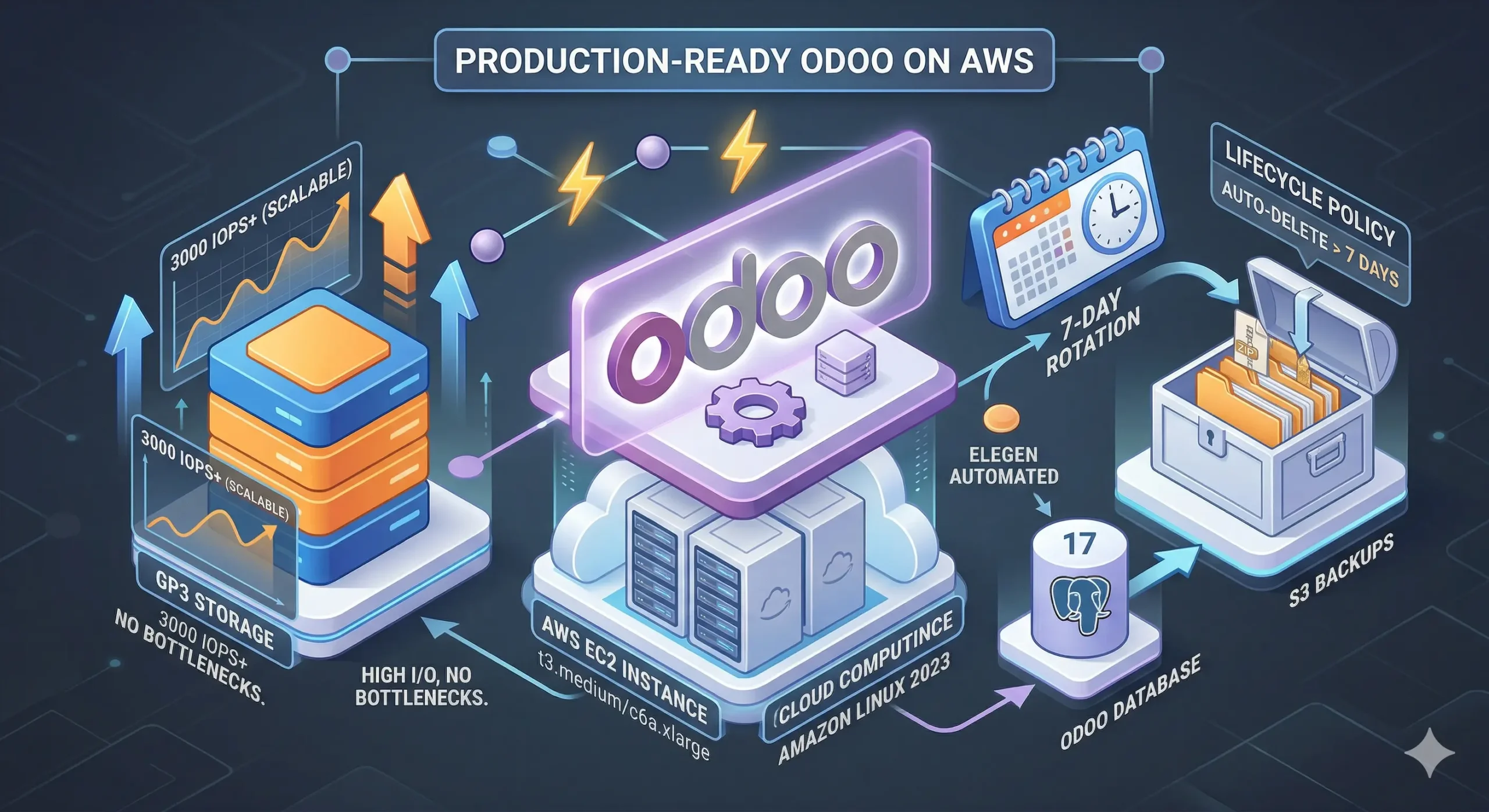
But a fast OS isn’t enough for a production environment. You need a setup that doesn’t slow down during peak accounting hours and a backup strategy that ensures you never lose more than a few hours of data. In this guide, we will walk through deploying Odoo 19 on AL2023, leveraging GP3 storage for optimized IOPS and an automated 7-day S3 backup rotation.
Infrastructure Setup: Optimized for IOPS
The bottleneck for Odoo is almost always the database I/O. Using older GP2 volumes is a mistake in 2026—GP3 is the only way to go.
Instance Selection
- Small (5-10 users):
t3.medium(2 vCPU, 4GB RAM). - Medium (20-50 users):
c6i.largeorm6i.large(2 vCPU, 8GB RAM). - Always enable Unlimited Credits for T-series instances to prevent CPU throttling during heavy report generation.
GP3 Storage Configuration
GP3 is 20% cheaper than GP2 and allows us to decouple performance from capacity.
- Baseline: 3,000 IOPS and 125 MiB/s throughput (Free with any GP3 volume).
- Optimization: For Odoo instances with high transaction volumes (e.g., heavy E-commerce or POS), provision 4,000 – 5,000 IOPS even if your disk size is small (e.g., 50GB). This ensures the PostgreSQL database never hits an I/O wait state.
Security Groups (Firewall)
Open the following ports:
22(SSH) – Restricted to your IP.80/443(HTTP/S) – Open to the world.8069(Odoo Web) – Open for initial setup (close it once Nginx is ready).
Preparing Amazon Linux 2023
AL2023 is based on Fedora, so we use dnf instead of apt.
Step 1: System Update & Essentials
sudo dnf update -y
sudo dnf install -y git python3.12 python3.12-devel gcc libxslt-devel \
    libjpeg-devel libxml2-devel openldap-devel postgresql17-devel \
    libffi-devel nodejs npm
Step 2: Installing PostgreSQL 17
AL2023 provides PostgreSQL 17 natively. This version is highly optimized for the complex queries Odoo 19 runs.
# Install the server
sudo dnf update -y
sudo dnf install -y postgresql17-server postgresql17
sudo postgresql-setup --initdb
sudo systemctl enable --now postgresql

# Create the Odoo user in Postgres
sudo -u postgres createuser -s odoo
Step 3: The PDF Engine (wkhtmltopdf)
The most common “broken” part of Odoo installs is PDF generation. For AL2023, you need the version built for Amazon Linux / CentOS.
# Download the RPM for AL2023/Fedora architecture
wget https://github.com/wkhtmltopdf/packaging/releases/download/0.12.6.1-3/wkhtmltox-0.12.6.1-3.amazonlinux2.x86_64.rpm

# Install dependencies and the package
sudo dnf localinstall -y wkhtmltox-0.12.6.1-3.amazonlinux2.x86_64.rpm
4. Odoo 19 Installation & Configuration
In a production environment, we never run Odoo as the root user. We’ll create a system user and use a Python Virtual Environment (venv) to isolate dependencies.
Create System User
sudo useradd -m -U -r -d /opt/odoo -s /bin/bash odooClone Odoo 19 Source
sudo su - odoo -c "git clone https://www.github.com/odoo/odoo --depth 1 --branch 19.0 /opt/odoo/odoo-server"Setup Virtual Environment
# CRITICAL: Create the venv using python3.12 explicitly
sudo su - odoo -c "python3.12 -m venv /opt/odoo/odoo-venv"
sudo su - odoo -c "/opt/odoo/odoo-venv/bin/pip install --upgrade pip"
sudo su - odoo -c "/opt/odoo/odoo-venv/bin/pip install -r /opt/odoo/odoo-server/requirements.txt"

sudo setsebool -P httpd_can_network_connect 1
sudo npm install -g rtlcss
Production Configuration & Systemd
Now, we create the configuration file and ensure Odoo starts automatically if the EC2 instance reboots.
Create Odoo Config
Create a file at /etc/odoo.conf:
[options]
admin_passwd = YOUR_STRONG_MASTER_PASSWORD
db_user = odoo
db_port = False
addons_path = /opt/odoo/odoo-server/addons
logfile = /var/log/odoo/odoo.log
Set up Systemd Service
Create /etc/systemd/system/odoo.service:
[Unit]
Description=Odoo19
Requires=postgresql.service
After=network.target postgresql.service

[Service]
Type=simple
SyslogIdentifier=odoo
PermissionsStartOnly=true
User=odoo
Group=odoo
ExecStart=/opt/odoo/odoo-venv/bin/python3.12 /opt/odoo/odoo-server/odoo-bin -c /etc/odoo.conf
StandardOutput=journal+console

[Install]
WantedBy=multi-user.target
Run sudo systemctl enable --now odoo to start the service.
6. Nginx Reverse Proxy & SSL (Let’s Encrypt)
To access Odoo via a domain name (like erp.yourdomain.com) with HTTPS, we use Nginx.
sudo dnf install nginx -y
sudo systemctl enable --now nginx
Create a new configuration file at /etc/nginx/conf.d/odoo.conf. Replace erp.yourdomain.com with your actual domain.
# Odoo Upstreams
upstream odoo {
    server 127.0.0.1:8069;
}
upstream odoochat {
    server 127.0.0.1:8072;
}

server {
    listen 80;
    server_name erp.yourdomain.com;

    # Log files
    access_log /var/log/nginx/odoo.access.log;
    error_log /var/log/nginx/odoo.error.log;

    # Increase proxy timeouts for long-running reports
    proxy_read_timeout 720s;
    proxy_connect_timeout 720s;
    proxy_send_timeout 720s;

    # Proxy headers
    proxy_set_header X-Forwarded-Host $host;
    proxy_set_header X-Forwarded-For $proxy_add_x_forwarded_for;
    proxy_set_header X-Forwarded-Proto $scheme;
    proxy_set_header X-Real-IP $remote_addr;

    # Handle Long-polling (Chat)
    location /longpolling {
        proxy_pass http://odoochat;
    }

    # Handle Standard Traffic
    location / {
        proxy_redirect off;
        proxy_pass http://odoo;
    }

    # Gzip Compression
    gzip_types text/css text/less text/plain text/xml application/xml application/json application/javascript;
    gzip on;
}
Restart the nginx
sudo nginx -t
sudo systemctl restart nginx
Unlike older versions, where you might use Snap, AL2023 allows for a direct installation via Python’s package manager or DNF:
sudo dnf install -y python3-certbot-nginx
sudo certbot --nginx
After setting up Nginx, they must enable proxy_mode in their odoo.conf file to ensure Odoo correctly identifies the user’s IP address and protocol (HTTPS).
Update /etc/odoo.conf:
proxy_mode = True7. The 7-Day Automated S3 Backup Strategy
This is the most critical part of a “Production-Ready” setup. Instead of manually deleting files, we use S3 Lifecycle Policies to handle the 7-day retention automatically.
The Backup Script
Create a script at /opt/odoo/scripts/backup_to_s3.sh:
#!/bin/bash
# Variables
DB_NAME="your_db_name"
BACKUP_PATH="/opt/odoo/backups"
S3_BUCKET="s3://your-odoo-backups-bucket"
TIMESTAMP=$(date +%Y%m%d_%H%M%S)

# Create backup directory if not exists
mkdir -p $BACKUP_PATH

# Generate Odoo Database Dump (using pg_dump for reliability)
sudo -u postgres pg_dump $DB_NAME > $BACKUP_PATH/${DB_NAME}_$TIMESTAMP.sql

# Sync to S3
aws s3 cp $BACKUP_PATH/${DB_NAME}_$TIMESTAMP.sql $S3_BUCKET/

# Remove local copy to save GP3 space
rm $BACKUP_PATH/${DB_NAME}_$TIMESTAMP.sql
Automating the 7-Day Retention
In your blog, emphasize that you should not handle deletions in the script. Use AWS native tools:
- Go to the S3 Console > Your Bucket > Management.
- Create a Lifecycle Rule.
- Set “Expire current versions of objects” to 7 days after object creation.
- AWS will now automatically delete any backup older than a week, saving you storage costs and manual work.
8. Conclusion
Running Odoo 19 on Amazon Linux 2023 provides a secure, cutting-edge environment for your business. By leveraging GP3 storage for consistent IOPS and S3 Lifecycle Policies for backups, you’ve built an infrastructure that is both high-performance and cost-effective.
9. Troubleshooting Common Issues on AL2023
Even with a perfect setup, production environments can hit snags. Here are the most common issues you’ll encounter when running Odoo 19 on Amazon Linux 2023.
Problem: PDFs are Blank or Styling is Broken
This is the #1 issue with Odoo. It usually means wkhtmltopdf cannot find the necessary X11 libraries, or cannot access the Odoo server via the web.base.url.
- The Fix: Ensure you installed the dependencies for AL2023, specifically:
sudo dnf install -y xorg-x11-fonts-75dpi xorg-x11-fonts-Type1 libXrender libXext fontconfigSystem Parameter: In Odoo, go to Settings > Technical > System Parameters and ensure report.url is set to http://127.0.0.1:8069.
Problem: 502 Bad Gateway (Nginx)
If Nginx is running but you see a 502 error, it means Nginx can’t “talk” to the Odoo service.
- The Fix: 1. Check if Odoo is actually running:
sudo systemctl status odoo. 2. Check the Odoo logs for a port conflict:tail -f /var/log/odoo/odoo.log. 3. SELinux Check: AL2023 has SELinux enabled by default. It might be blocking Nginx from connecting to a network socket. Try:bash sudo setsebool -P httpd_can_network_connect 1
Problem: 504 Gateway Timeout
This happens during long-running tasks like heavy report generation or large module installs.
- The Fix: You need to increase the timeout in both Odoo and Nginx.
- Nginx: Add
proxy_read_timeout 600s;to your Nginx site config. - Odoo: Increase
limit_time_reallimit_time_cpuin yourodoo.conffile.
- Nginx: Add
Problem: Backup Script Fails (Access Denied)
If your S3 backup script is failing, it’s almost always a permission issue with the IAM role.
- The Fix: Don’t use AWS Access Keys. Instead, ensure your EC2 instance has an IAM Instance Profile attached with a policy that allows
s3:PutObjecton your specific bucket.- Test it manually as the Odoo user:
sudo -u odoo aws s3 ls s3://your-bucket-name
Problem: “Internal Server Error” (Database Connection)
If you see this immediately after installation, Odoo cannot reach PostgreSQL.
- The Fix: Check the
db_useranddb_passwordin/etc/odoo.conf. Ensure they match the user you created in Postgres. Remember that on AL2023, Postgres 17 usesscram-sha-256encryption by default, so ensure your Odoo version is compatible (Odoo 19 is).
